This article walks you through the screens and buttons of the Solitaire app (iPhone, iPad, and Android). The rules of the game are in Solitaire Rules and How to Play.
Reading the Screen
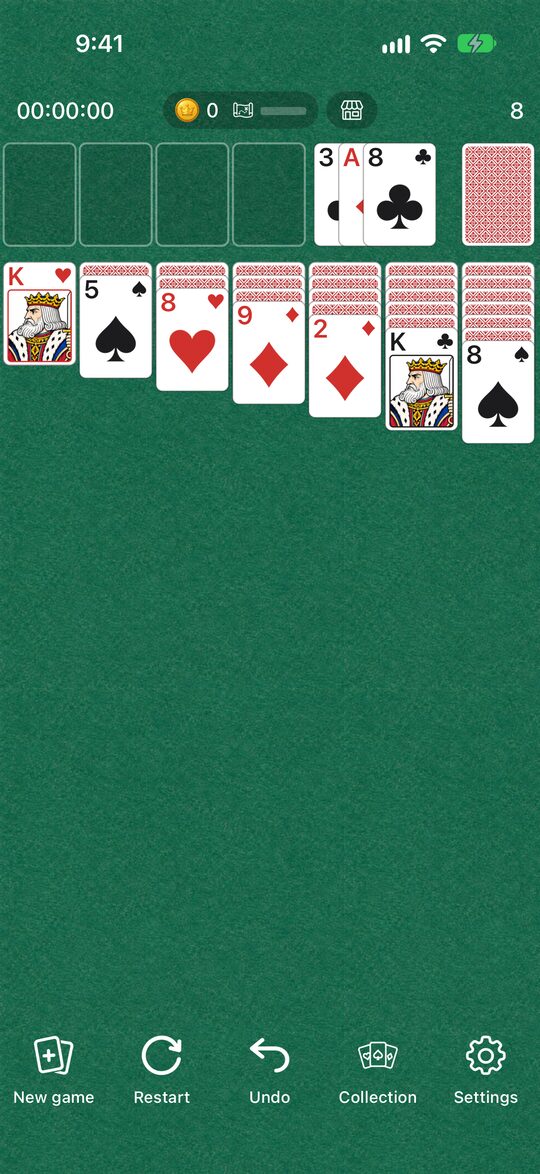
- Top left: Your elapsed time.
- Top right: Your move count.
- Top center: Your coins and the exploration card. Tap it to open the Collection.
- Top row: The four foundations on the left and the stock on the right.
- Below that: The seven tableau columns.
The first time you open the app, a short explanation of how to play appears. To read it again later, open it from “How to play” in Settings.
Moving Cards
- Tap: The card moves to a place where it fits, automatically. A single card goes to a foundation if it can. If not, it goes to a tableau column where it fits.
- Drag: Move a card wherever you like. If you let go somewhere it can’t go, it returns to where it was.
- Moving several at once: Where face-up cards form a proper sequence, tap or drag a card in the middle and everything below it moves along with it.
- Stock: Tap to turn over one card. When the stock runs out, tap it again and the waste pile goes back to the stock.
The Five Buttons at the Bottom
From the left, they are “New game,” “Restart,” “Undo,” “Collection,” and “Settings.”
New game
Starts fresh with a different deal. If you tap it in the middle of a game, the app asks “Start a new game?” first. (It doesn’t ask if you haven’t made a move yet, or if you’ve already cleared the game.) Every deal you get has been checked by a computer to make sure it can be solved (How We Make Solvable Deals).
Restart
Starts the same deal over from the moment it was dealt. It also asks first if you’re in the middle of a game. Use it when you’re stuck, or when you want to think through a deal you’ve already played.
Undo
Goes back one move. You can tap it as many times as you like, all the way back to the start of the deal. When you undo, the time goes back one move too, but your move count doesn’t go down. It goes up by one.
Collection
Use the coins you earn by playing to get card backs, face cards, backgrounds, and clear effects, and dress up your game (Dress-Up and Exploration).
Settings
Here you can turn sound and Auto Complete on or off, and find language, notifications, how to play, and more.
Auto Complete
When the stock and waste pile are empty and all the tableau cards are face up, the remaining cards fly up to the foundations one by one. You can turn this on or off with “Auto Complete” in Settings (it’s on at first). Cards moved this way also count toward your move count.
When You Clear the Game
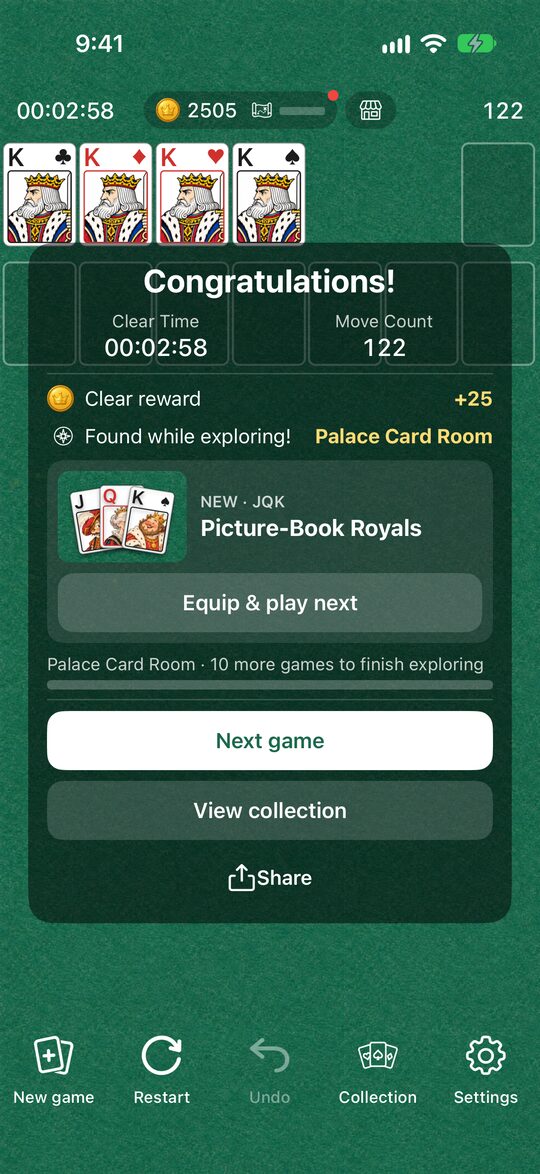
You clear the game when all 52 cards are on the foundations. The screen shows your time and move count, and you can send your record with “Share.” You can also see the coins you earned and your exploration results here.
Good to Know
- Language: In Settings, “Language” lets you choose from 13 languages, including Japanese and English. At first the app matches your device’s language.
- Notifications: In Settings, “Notifications” lets you turn sale announcements and play-time reminders on or off.
- Games in progress: If you fully close the app, the game you were playing is not saved.
For tips on clearing the game quickly, see Clearing the Game Fast and in Few Moves.