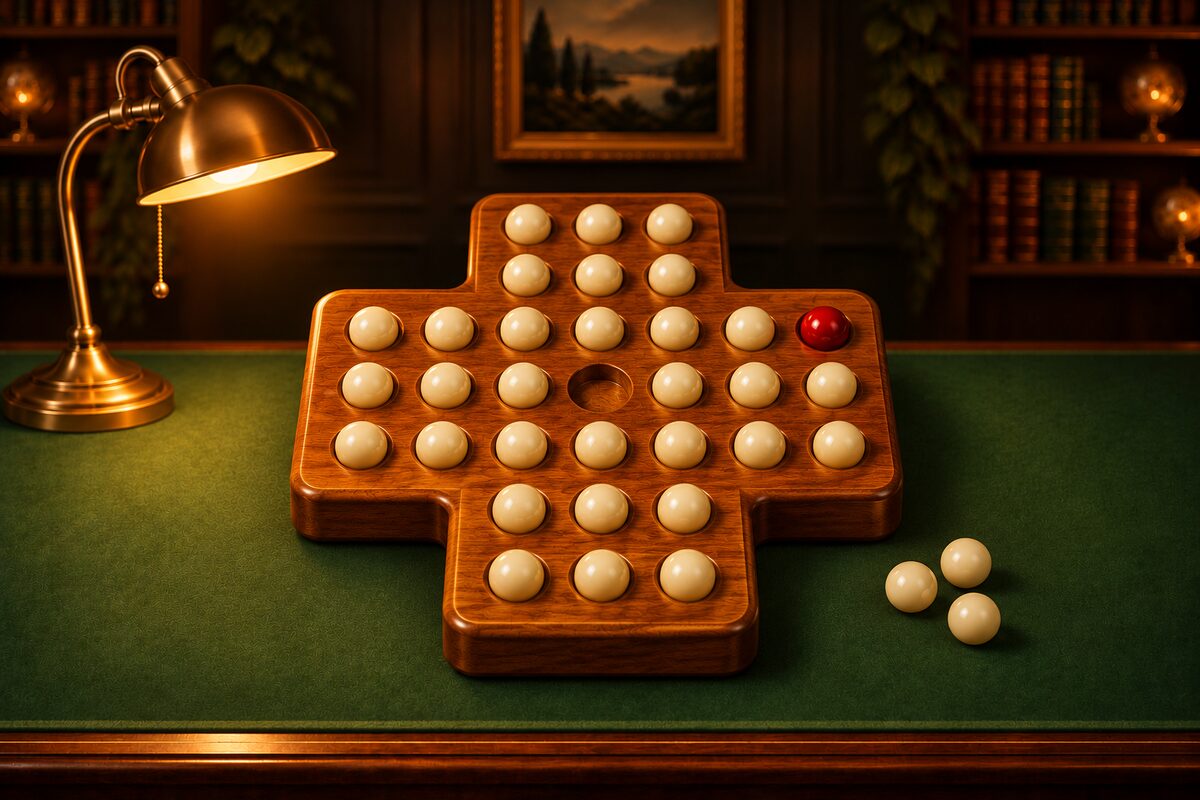
Peg Solitaire is a one-player puzzle app for iPhone, iPad, and Android. As soon as you open it, you can play a board in Puzzles mode.
Reading the Screen
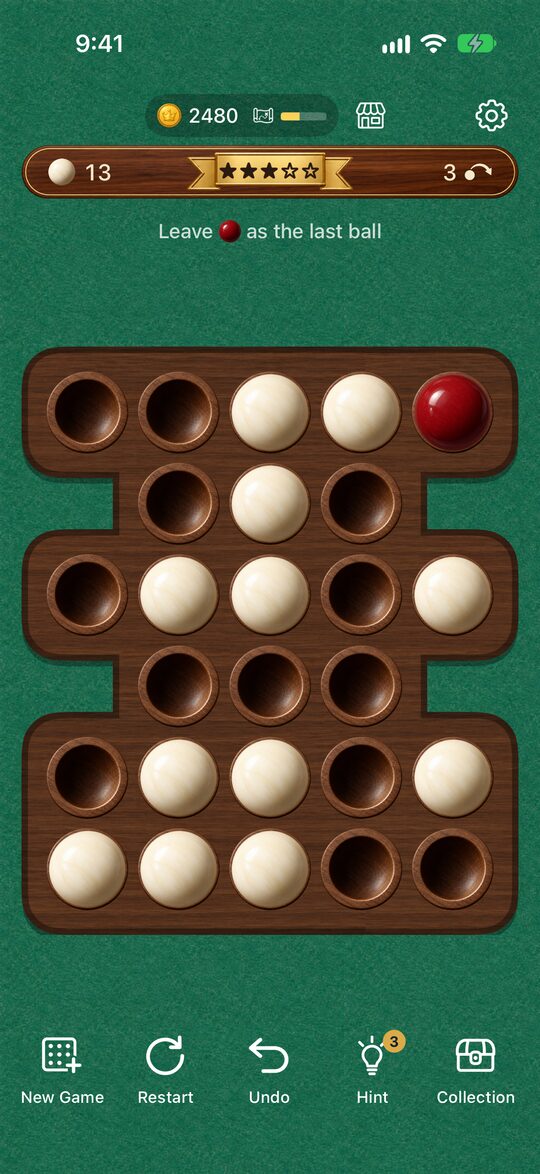
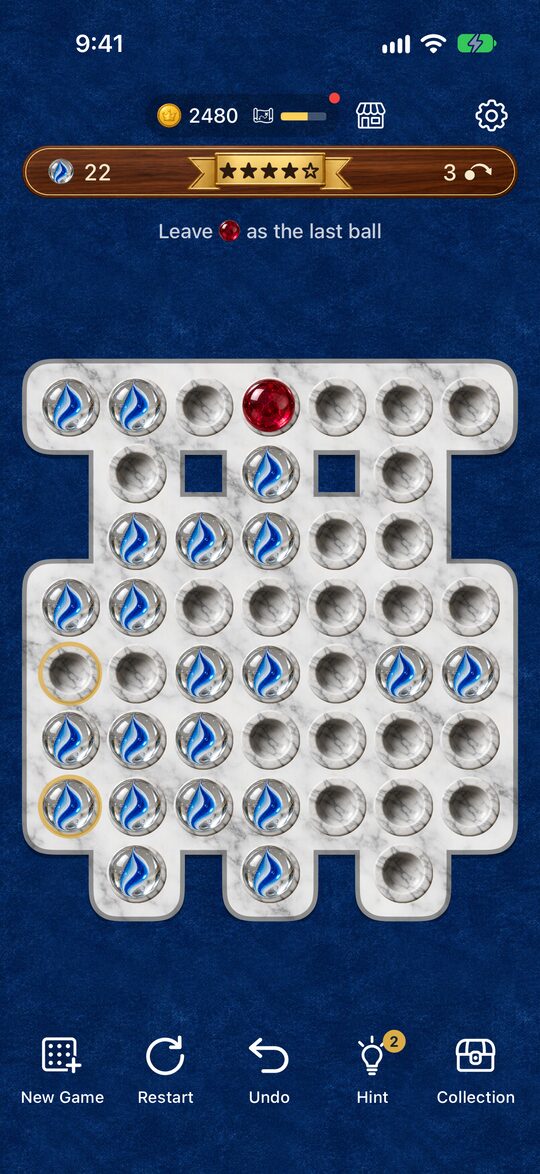
Across the very top are your coins, the exploration tile, the shop, and the Settings button. Below them, a wooden tile shows how the current game is going.
- Left: The number of pegs left
- Center: The mode (stars for Puzzles, or “Classic” for Classic)
- Right: Your move count (how many jumps you’ve made)
Under the tile you’ll see your goal (such as “Leave the boss ball as the last ball”) and, later, the result.
Moving Pegs
- Tap: Tap the peg you want to move, then tap the hole where it should go.
- Drag: You can also drag a peg with your finger to the hole you want.
A peg can jump over one neighboring peg, up, down, left, or right, and land in the empty hole right behind it. The peg you jumped over disappears the moment you land. The rules are in the rules article.
If you use VoiceOver on iPhone or iPad, you can select a peg and then choose where it goes from the actions.
The Five Buttons at the Bottom
New Game: Starts a new board.
Restart: Goes back to the start of the same board.
Undo: Takes back one move. You can undo as many moves as you like.
Hint: Makes the next move glow.
Collection: Opens the dress-up screen.
If you press “New Game” or “Restart” after making at least one move, the app asks you to confirm that you really want to start over.
After you clear a board, “Undo” and “Restart” can’t be pressed. Continue with “New Game” or “Next game” on the result screen.
For more on using hints, see How to Use Hint. For the Collection, see Dress-Up and Exploration.
Settings
Open Settings with the gear button at the top right.
- Mode: At the very top, switch between “Puzzles” and “Classic.” When you choose “Puzzles,” you can pick a difficulty from ★1 to ★5 below it (the difficulty article).
- Sound: Turn sound effects on or off.
- Language: Choose from nine languages: Japanese, English, Chinese (Simplified and Traditional), Korean, Spanish, French, German, and Portuguese. You can also choose “Use Device Language.”
- How to play: Shows the introduction you saw the first time you opened the app, so you can read it again.
If you change the mode or difficulty in the middle of a game, you can choose “Switch Now” or “From Next Game.”
Frequently Asked Questions
If I quit partway through, can I pick up where I left off?
Even if you close the app, you can start again with the same puzzle. However, the moves you made partway through a game aren’t saved, so you’ll start from the beginning of that puzzle.
How are the puzzles made?
Each time you tap “New Game,” the app creates a new board on the spot (or ahead of time). Every board is built so that it can always be solved (How We Make Puzzles That Can Always Be Solved).
Where do I need to leave the last peg in Classic mode?
In Classic (English 33 holes), you clear the board if one peg is left in any hole. It doesn’t have to be in the center. You’ll find the answers in the solving article.
Are there ads?
The app can be downloaded without charge, and it shows ads. When you run out of hints, or when you want Luck Up or Quick steps in Explore, you only watch an ad if you choose to, and then you receive the reward.