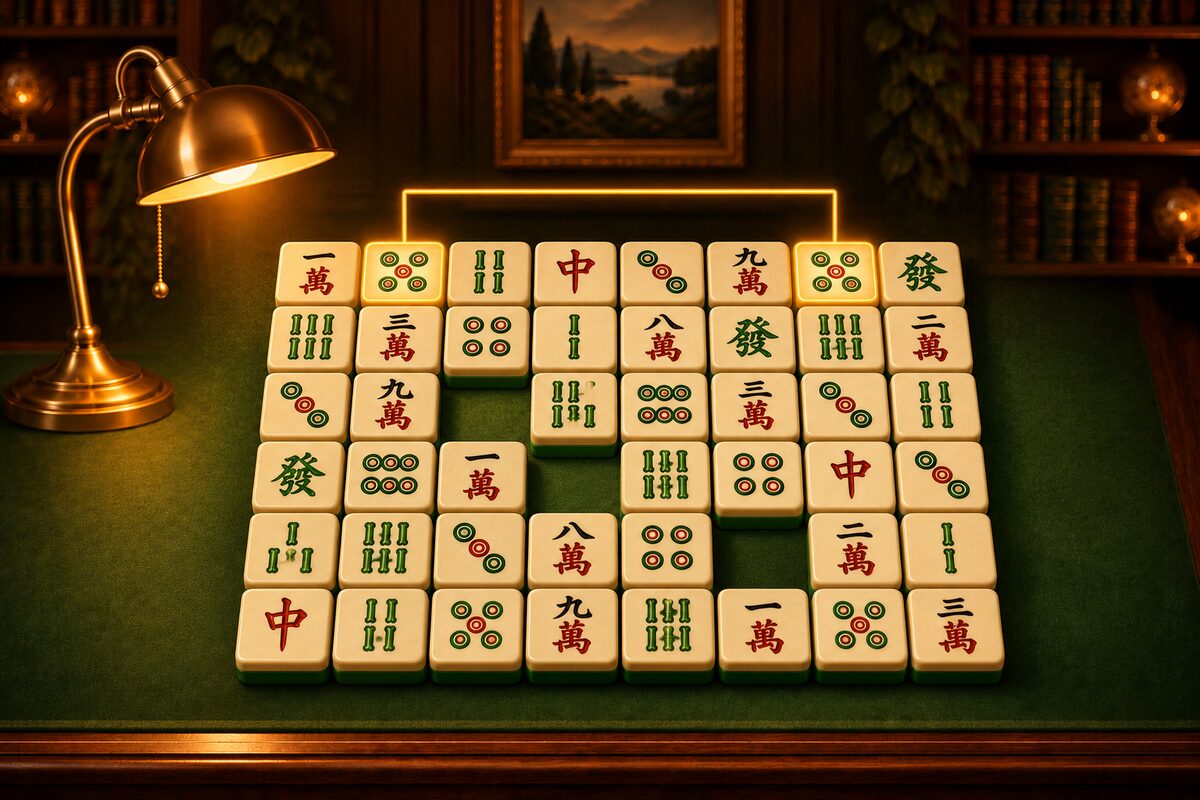
This article explains the screens and buttons of the Shisen-Sho app (Android). For the rules, see Shisen-Sho Rules: Remove Pairs with Up to Two Turns.
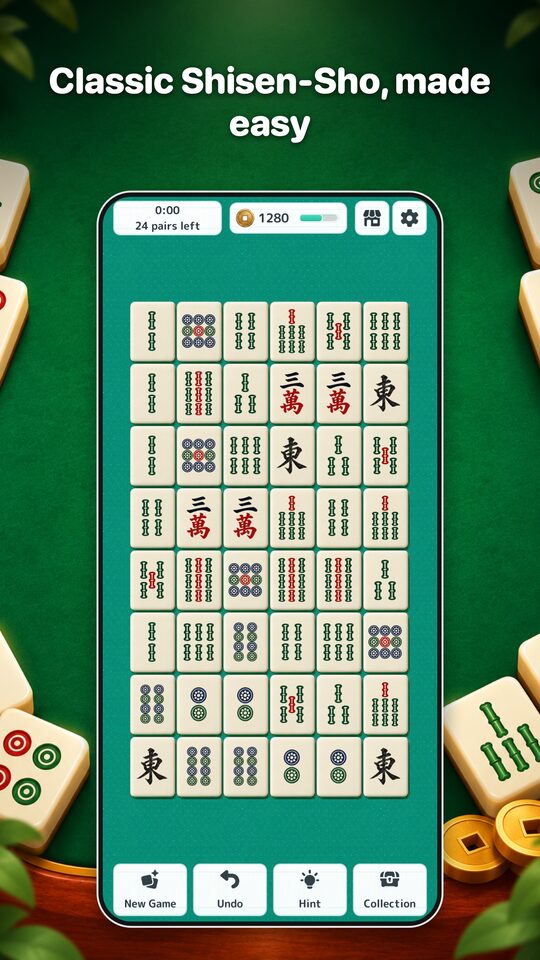
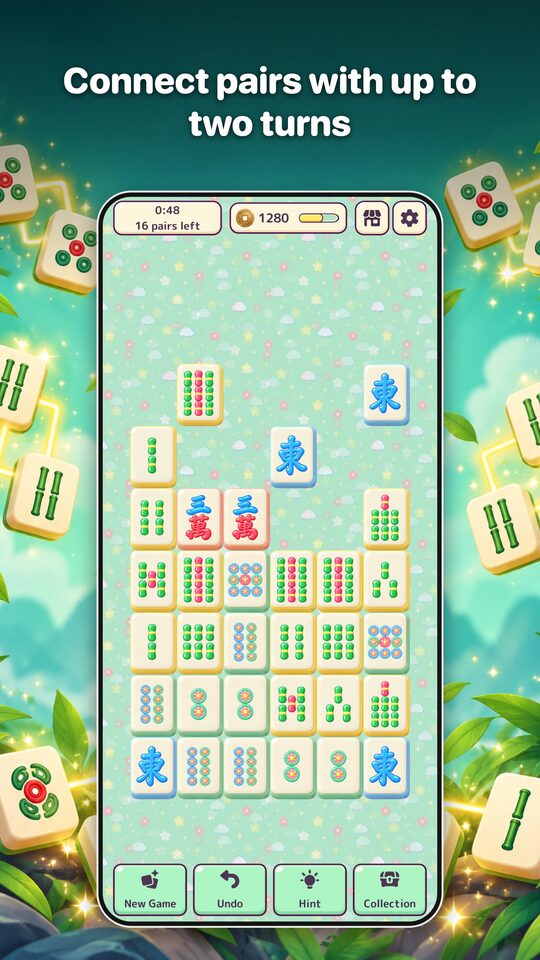
Removing Tiles
- Tap a tile to select it. Tap it again to deselect it.
- Tap a tile with the same picture as the selected one. If a line can connect them, both tiles are removed, and the line between them appears.
- If the picture matches but no line can connect the tiles, nothing is removed, and the tile you tapped last becomes the selected one.
- If you tap a tile with a different picture, your selection moves to that tile.
The Four Buttons at the Bottom
- New Game: Starts a new deal. If a game is in progress, the app asks whether you want to quit it first.
- Undo: Puts back the pairs you removed, one at a time. You cannot go back past a shuffle.
- Hint: Highlights one pair you can remove right now. You can use it as many times as you like (How to Use Hints).
- Collection: Opens the Style, Explore, and Shop screens.
When no pairs are left to remove, the app says “No more matches,” and you can choose Shuffle. Shuffling rearranges the remaining tiles into a layout you can clear (When You Get Stuck: Shuffle).
The Top Bar
- It shows how long you have played and how many pairs are left.
- The card in the middle shows your coins, your exploration progress, and more. Tap it to open the Explore screen.
- The icon to its right opens the Shop, and the one on the far right opens Settings.
Settings
In Settings you can turn sound effects on and off, choose a language (10 languages; the app starts in your device’s language), open How to Play, and change your ad privacy settings. How to Play also appears the first time you start the app.
When You Clear a Game
You clear a game when you remove all 48 tiles. The app shows your time and the coins you earned. With coins, you can collect items such as tile faces and tables. For details, see Exploration and Secrets: A New Item Every 10 Games.