
If you keep a game as a record, you can pick it up later or look back at where the balance of the game changed. This article explains how to keep game records in the Chess Board app.
Games Are Saved Automatically
In the Chess Board app, the moves you play are saved on your device as a game record as they go. You don’t need to press a save button. Even if you close the app, you can pick up where you left off the next time you open it.
The Saved Games List
Open the saved games list with the book-shaped button at the top of the screen.
- Each game shows a small picture of the board at that point, its name, the date, and the number of moves. If it has comments, the count is shown too.
- Select a game to open it and continue playing. The game that is open now has a gold mark.
- Start a new game from “+ New” in the saved games list. When you start a new game after making one or more moves, a screen asks whether to start it while keeping the current game saved.
- From the “…” on each game, you can rename or delete it. A name can be 1 to 80 characters. When you delete, a screen asks you to confirm the game’s name.
Up to 3 Saved Games Without a Purchase
Without a purchase, you can save up to 3 games. If you try to start a new game when you already have 3, you are offered a choice: delete a game you don’t need, or make the number of saves unlimited with additional features. Saved games are never deleted on their own.
Any games beyond 3 that you saved in an earlier version are all kept. Opening, continuing, renaming, and deleting remain available with no purchase.
The Move Record and Comments on Each Move
If you buy the one-time additional features, you can do the following.
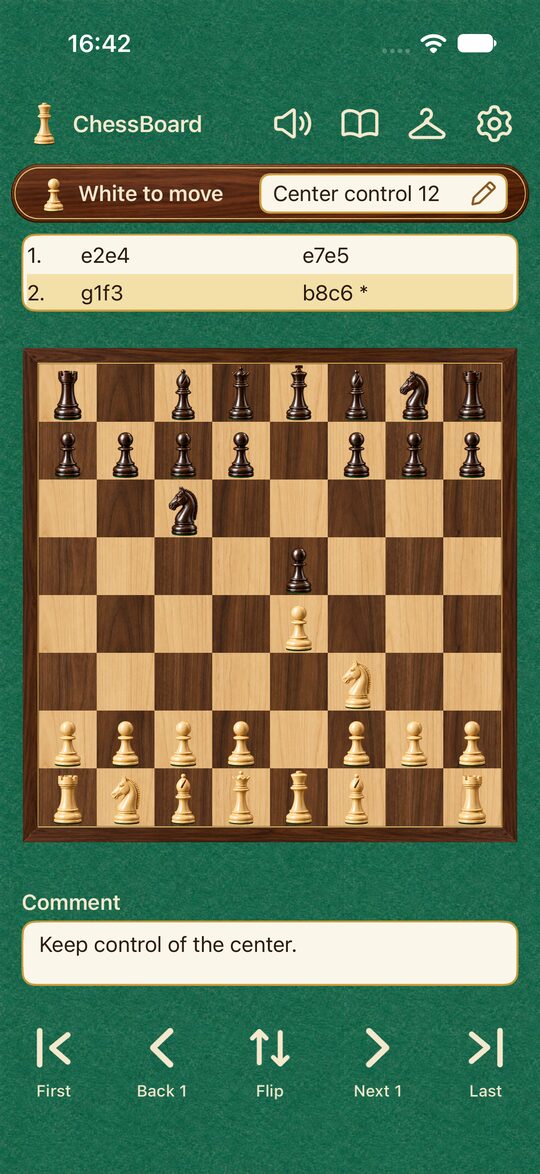
- The move record: The moves are listed above the board in a starting-square and destination-square form, like “1. e2e4” and “1… e7e5.” Select a move to jump to the position right after it was played. Just selecting an earlier move doesn’t erase the moves after it. When you play a different move from there, the moves and comments after it are replaced.
- Comments: You can write a comment on the selected move in the box below the board. You can also write one on the starting position. A move with a comment is marked with “*” in the record.
- No limit on saved games: You can save any number of games.
- PGN and FEN: You can import and export game records as PGN and positions as FEN (What Are PGN and FEN?).
In Settings, “Show move record” and “Show comments” let you show or hide each box. Hiding them doesn’t erase the saved moves or comments.
Backup
With the additional features, you can back up your game records and comments together. They are saved to iCloud on iPhone and iPad and to Google Drive on Android. Backups can happen automatically after changes, and you can turn automatic backup on or off. When you restore, the backed-up games are added while the games on your device are kept.
If You Want to Keep Records on Paper
When writing on paper, the style introduced in How to Read Chess Notation (1. e4 e5 2. Nf3 and so on) is the common choice. The e2e4 form in the app’s move record spells out exactly where each piece moved from and to, which makes it easy to read even for beginners.
How to take moves back and step forward is covered in How to Use Takebacks (Back 1 and Next 1).