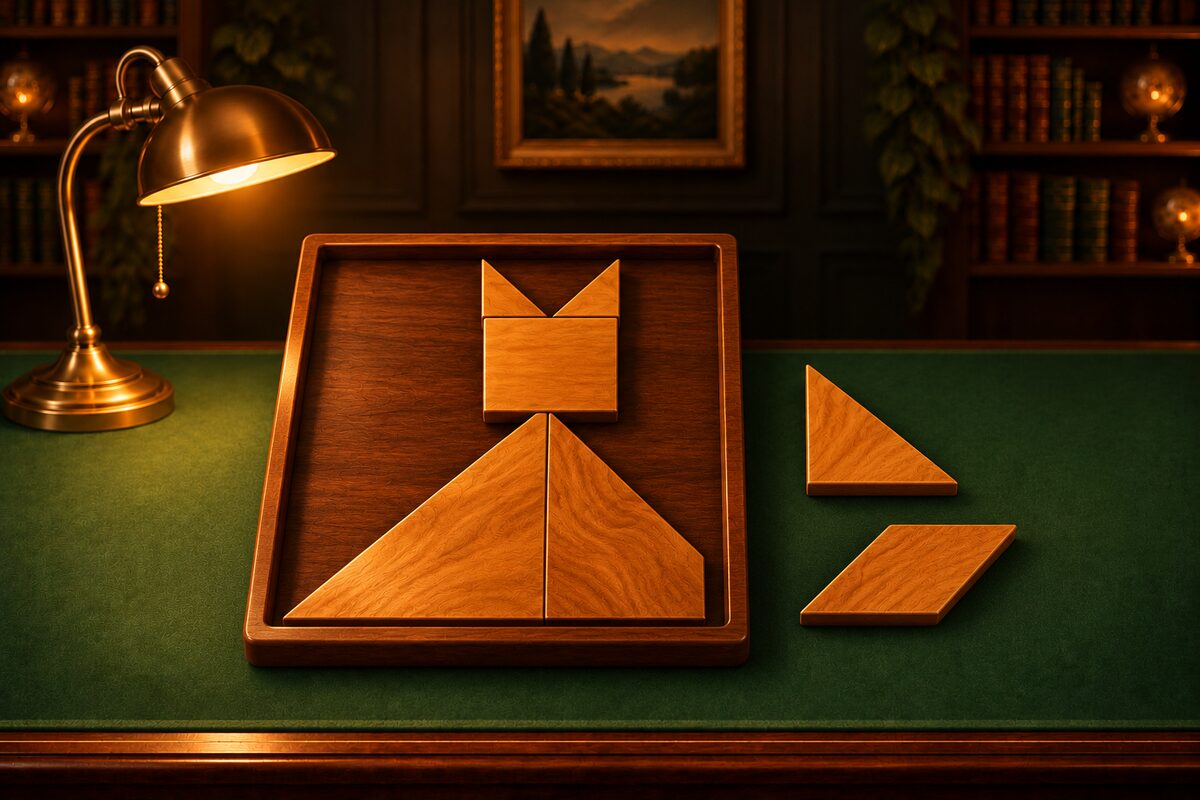
In the Tangram app, you can rotate pieces and flip the parallelogram.
Tap to Rotate 45°
Tap a piece to rotate it 45° clockwise. Tap 8 times and it makes a full turn back to its original angle.
- You can rotate pieces in the tray and pieces already in the frame.
- A piece in the frame turns only when there is open space around it and the rotated shape fits. If it does not fit, the piece wobbles a little to tell you.
- If your finger moves just slightly while you are trying to drag, it counts as a tap and the piece rotates.
Flip the Parallelogram with ⇆
In Tangram mode, you can flip the parallelogram left to right with the ⇆ button at the top right.
Why only the parallelogram? Of the seven pieces, the triangles and the square match their original shape again after you rotate them, even if you flip them. Only the parallelogram becomes a shape that cannot be turned back to its original angle however you rotate it once you flip it.
That is why some puzzles cannot be matched by rotating alone. If the parallelogram just will not fit, try flipping it.
- Flipping in the tray does not count as a move.
- When you flip a piece on the frame, it is flipped in the same place as far as possible. If there is no place for it to fit, the piece wobbles to tell you.
- In Tangram mode, in about half of the puzzles, the parallelogram is placed in the tray already flipped over.
In Rectangles and Silhouettes modes, pieces are only rotated, never flipped. The puzzles are made so that rotating alone can solve them.
Undo Takes It Back
Moves you made by rotating or flipping on the frame can be taken back one at a time with “Undo.”
When You Want Less Motion
If “Remove animations” is turned on in your device settings, the angle changes right away when you rotate or flip, with no animation.
Other controls, such as moving pieces, are summarized in How to Use the Tangram App.