FreeCell has been loved by many people because it came with computers running Windows 95 and Windows XP. This article explains the features of Windows FreeCell, how to play on Windows today, and how it differs from the smartphone app.
Numbered Deals
The old Windows FreeCell gave its deals numbers from 1 to 32,000. If you chose a number, you could always play the same deal, so you could talk with friends about things like “number so-and-so can’t be solved.”
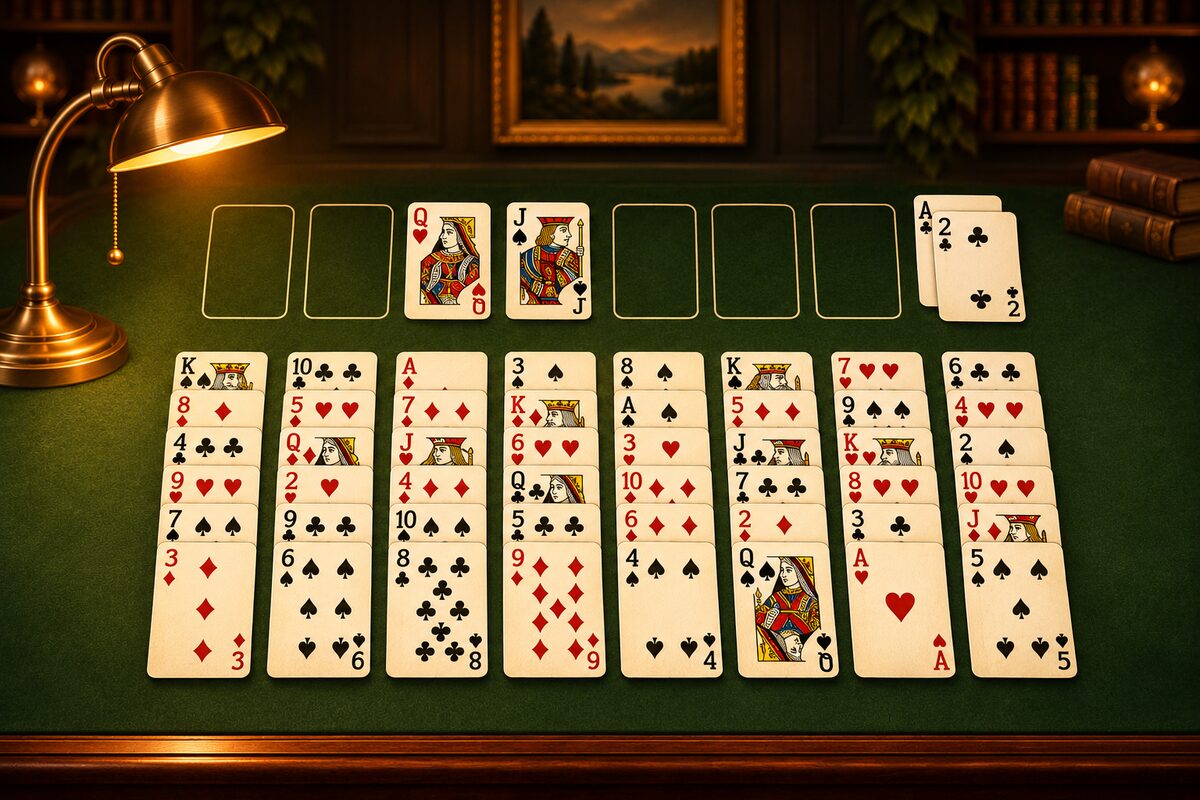
How to make a deal from a number is well known today. The diagrams on this page were made with that calculation. The diagram below is deal number 1.
Of the 32,000, it is known that only number 11982 can’t be solved. In this page’s program too, there was no solution to number 11982 even after checking every reachable board (Almost Every FreeCell Deal Can Be Solved).
Playing on Windows 10 and 11
Computers running Windows 10 and 11 often have “Microsoft Solitaire Collection” installed, and you can play by choosing “FreeCell” in it. If you can’t find it, search for “Solitaire” in the Microsoft Store. The names, screens, and what you can play shown there may change over time.
If You Want to Play on a Smartphone
When you want to play on a smartphone or tablet, you can use the FreeCell app.
What Is the Same
- 52 cards, 8 columns, 4 free cells, and 4 home cells (How the Cards Are Laid Out).
- The rules: Stack in alternating red and black, one number lower each time. Any card can go in an empty column. Build each suit on the home cells from A to K.
What Is Different
- No numbers for deals: The FreeCell app shuffles the cards fresh every time. You can’t choose a number to play, but you can replay the same deal with “Restart.”
- How many cards you can move at once: In the app, it’s up to “the number of empty free cells plus one,” and an empty column doesn’t increase the number per move. If you use an empty column, you can carry a run in several steps (How Many Cards You Can Move at Once).
- You can move cards back from the home cells: You can move the top card of a home cell back to the tableau or to a free cell (Moving a Card Back from a Home Cell).
- Undo: You can go back one move at a time, all the way to the start of the game.
- Dress Up: As you play, you save up coins and can change your cards and tables (Enjoying Dress Up and Explore).
Which Should You Play?
You might split it up: Windows when you want to play at a leisurely pace on a big computer screen, and the smartphone app when you want a quick game in spare moments. Places where you can play at no charge are collected in Playing FreeCell on Your Phone and Computer. The story of how FreeCell came to Windows is covered in The History of FreeCell.