FreeCell is a FreeCell game you can play on iPhone, iPad, and Android. This article explains how to read the screen and use the buttons. The rules of the game are in FreeCell Rules and How to Play.
Reading the Screen
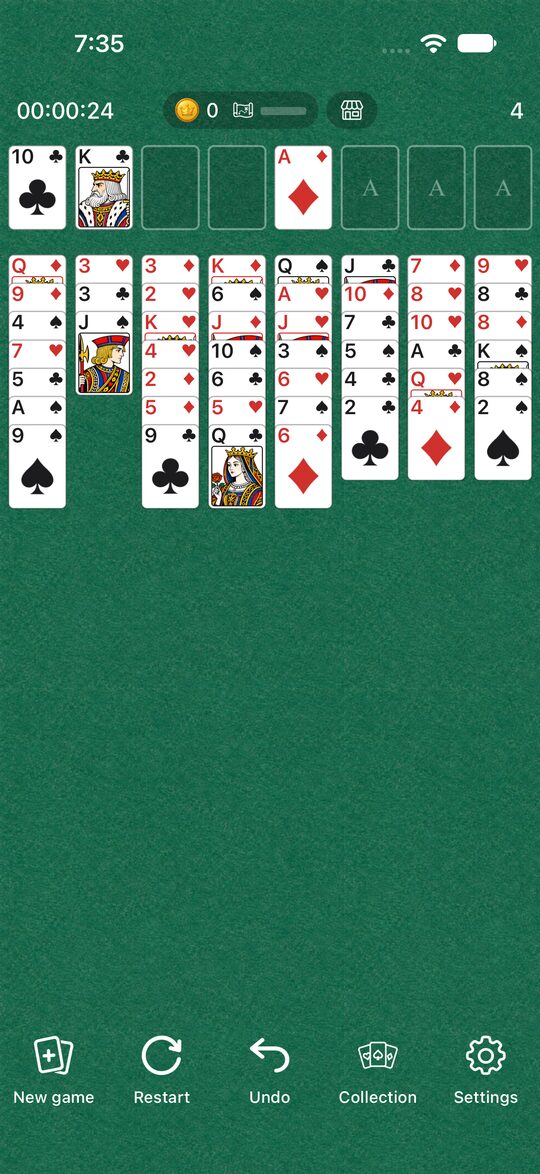
- Top left: Your elapsed time.
- Top center: Your coins, your exploration progress, and the shop.
- Top right: Your move count.
- The four on the left of the top row: The free cells.
- The four on the right of the top row: The home cells. Empty spaces have a faint “A” drawn on them.
- Middle: The eight columns of the tableau.
The Buttons at the Bottom
- New game: Start with a different deal.
- Restart: Play the same deal again.
- Undo: Go back one move.
- Collection: Dress Up, Explore, and the Shop.
- Settings: Sound, language, and more.
If you press “New game” or “Restart” in the middle of a game, a screen appears to make sure you really want to start. If you haven’t made a single move yet, or you have already cleared the game, it starts right away without asking.
Moving Cards
- Tap: If the card can go to a home cell, it goes there. If not, it moves to the first column that will take it, checking from the left (Where a Tapped Card Goes).
- Drag: Move the card to where you want it and let go. To put a card in a free cell, drag it. If you let go somewhere it can’t go, it returns to where it was.
- Moving several at once: If you move a card from the middle of an unbroken run of alternating red and black cards, the cards on top of it move too. You can move as many as “the number of empty free cells plus one” in one go (How Many Cards You Can Move at Once).
- Moving back from a home cell: You can move the top card of a home cell back to the tableau or to a free cell (Moving a Card Back from a Home Cell).
Cards never go up to the home cells automatically. You tap a card that can go up to send it there.
Undo
Undo takes the board back one move. You can go back as many times as you like, all the way to the start of the game. Each time you undo, though, your move count goes up by 1, and the time does not go back. You can’t undo after you have cleared the game.
Time and Moves
- Time: It starts counting when you first move a card. It stops while the app is closed and while the Settings or a confirmation screen is open.
- Moves: It goes up by 1 every time you move a card. Undo also adds 1 (Move Count and Moves to Clear).
Settings
- Sound: The sounds for dealing, placing cards, and clearing.
- Language: Choose from 10 languages, including Japanese and English.
- How to play: See the rules explanation that appears the first time you launch the app, again.
When You Clear the Game
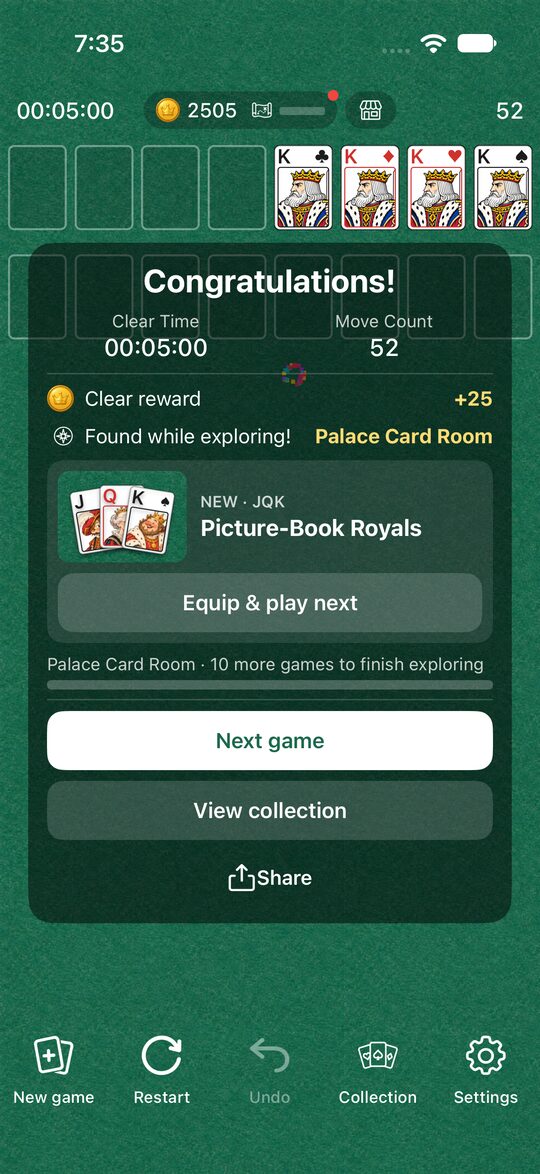
You clear the game when all 52 cards are on the home cells. You see your time and move count, and you can share your result. You can change the clear effect (fireworks by default) with the Effects in the Collection (Enjoying Dress Up and Explore).
Games in Progress Aren’t Saved
FreeCell doesn’t save a game in progress. If you quit the app completely, the next time you open it you start from a new game.
Ads
A full-screen ad may appear between games, when you move on to the next game with “New game” or “Restart”. It never appears in the middle of a game. The banner ad at the bottom of the screen appears only on the Settings screen.
Other questions are answered in FreeCell FAQ.