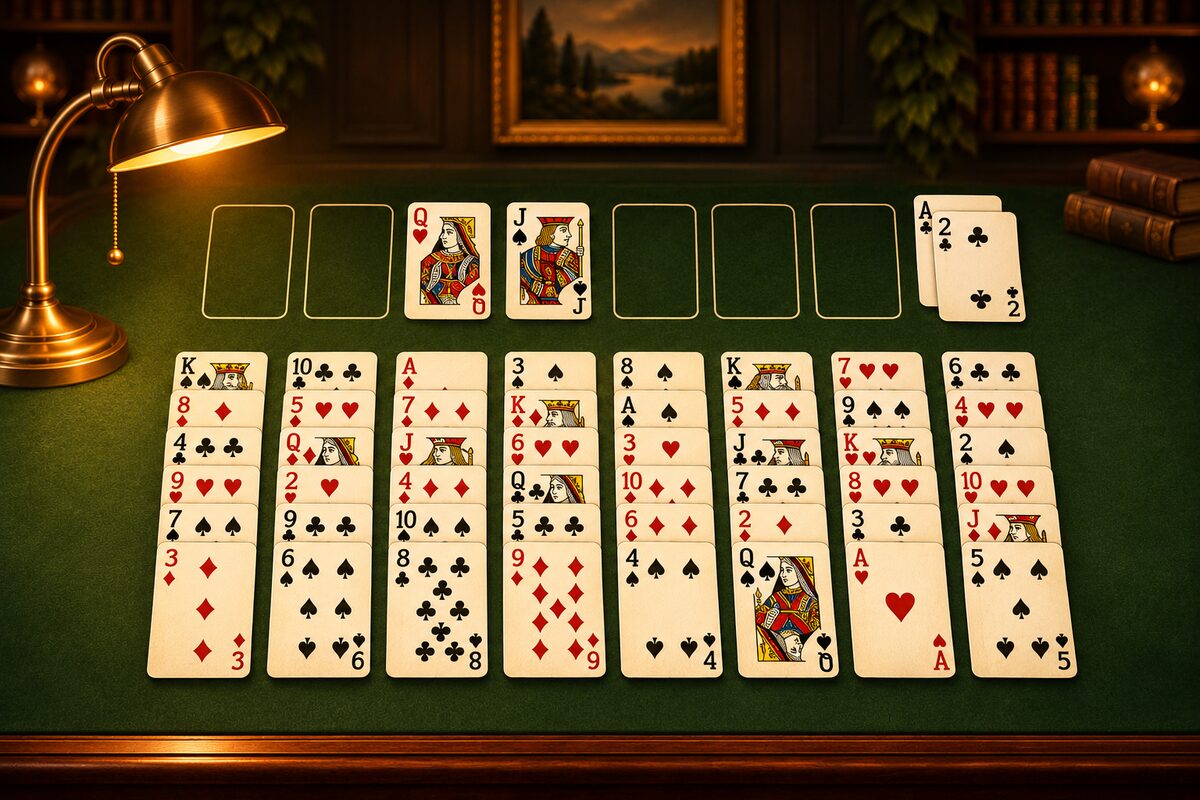
In the FreeCell app, just tapping a card moves it automatically to a place where it fits. When there are two or more places it could go, though, there are rules for where it goes. This article explains those rules and how to put a card where you want it.
The Order the App Looks for a Destination
When you tap a card, the app looks for a place in this order and moves the card to the first place it finds.
- Home cells (from the left)
- Tableau columns (from column 1, including empty columns)
It doesn’t look at the free cells. When you want to put a card in a free cell, drag it.
Example: Where Does It Go?
The diagram below shows the deal known as Windows FreeCell number 2, right after it is dealt.
- Tap an Ace, and it goes to a home cell, because home cells are checked first.
- Tap a card that can go only in the tableau, and it goes to the first column that will take it, checking from column 1. Even if cards of the same number and color are visible in two places, it goes to the one in the left column.
- Tap a card that can’t go anywhere, and nothing happens.
Empty Columns Count as Destinations Too
Any card can go in an empty column. So a card you tap may move to an empty column. For example, if column 2 is empty and there is also a place for the card in column 7, tapping sends it to column 2 on the left (the empty column). If you want to keep the empty column, drag the card to column 7.
When Moving Several Cards
If you tap a card in the middle of a run of alternating red and black cards, the app tries to move that card and the run on top of it together. If that is more than you can move at once (up to “the number of empty free cells plus one” cards), it doesn’t move (How Many Cards You Can Move at Once).
When You Tap a Card in a Free Cell or Home Cell
- A card in a free cell: It goes to a home cell if it can be built up there, and if not, to a tableau column where it fits.
- The top card of a home cell: It goes to a tableau column where it fits (Moving a Card Back from a Home Cell).
When to Drag
- Putting a card in a free cell: A tap won’t move it there, so drag it.
- Putting a card in the tableau instead of a home cell: If you tap a card that can go to a home cell, it moves to the home cell. When you want to use it in the tableau, drag it.
- Putting a card in a different column while keeping an empty column.
If you let go somewhere a card can’t go, it returns to where it was. If a card goes somewhere you didn’t intend, you can take it back with “Undo” (How to Use the FreeCell App).