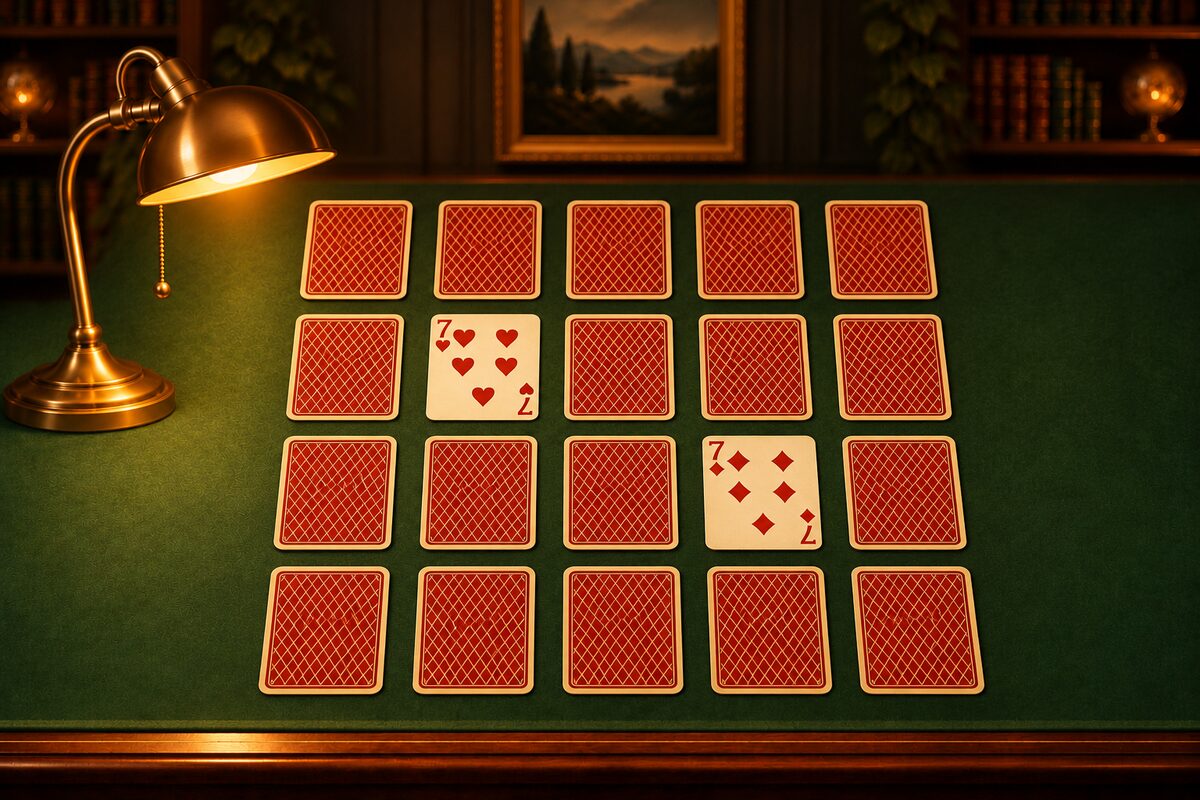
Memory Cards is a solo card-matching game played with 20 playing cards. You can play it on iPhone, iPad, and Android. This article walks you through the app step by step. The rules are covered in How to Play Memory.
Reading the Screen
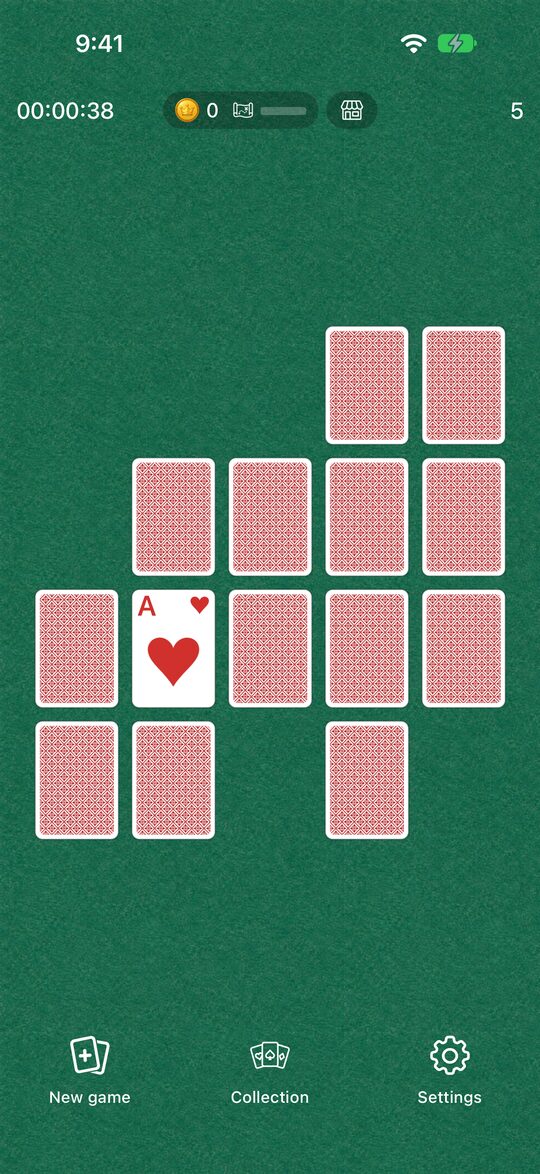
- Center: 20 face-down cards, laid out in 5 columns and 4 rows.
- Top left: Your elapsed time.
- Top center: Your coins and your exploration progress. Tap it to open the Collection.
- Top right: The number of flips (tries) so far.
- Bottom: Buttons for “New game,” “Collection,” and “Settings.”
The first time you play, a “How to play” screen appears. You can read it again any time from Settings.
Flipping Cards
- Tap a face-down card to flip it.
- Tap a second card to flip it. Your try count goes up by 1.
- If the two cards have the same number, they are removed after a moment. If not, they flip back over.
You can’t flip other cards until the app has checked the two you chose. The timer starts when you flip your first card.
The app has no way to take a flip back, so think before you choose (What Should You Flip First?).
New Game
Tap “New game” at the bottom to reshuffle the cards and start over. If you’ve already flipped at least one card, the app asks “Start a new game?” before it does.
On iPhone and iPad, a game in progress isn’t saved. If you close the app, you’ll start with a new game next time.
The Clear Screen
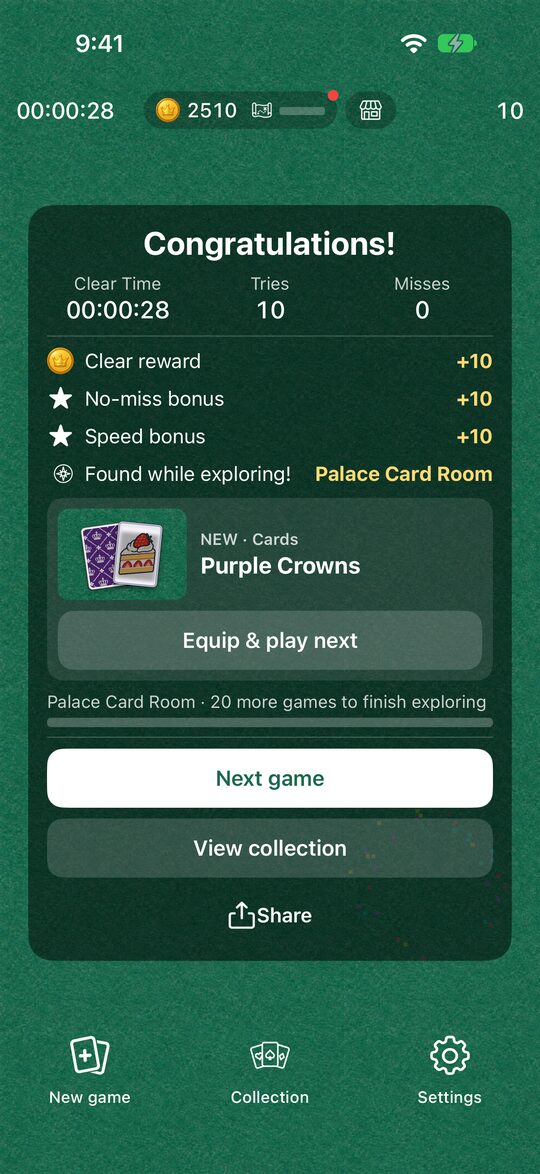
You clear the game when you’ve matched all 10 pairs. The clear screen shows the following.
- Your time, number of tries, and number of misses
- The coins you earned, with a row for each bonus (no misses, time)
- Your exploration progress and any items you found
Tap “Next game” to start another one right away. On iPhone and iPad, you can also use the Share button to send your result to a friend.
For how misses are counted, see The Math of Counting Misses. The bonuses are explained in No Misses and Within 30 Seconds.
Settings
From “Settings” at the bottom, you can do the following.
- Sound: Turn the flip sound, the match sound, and other sounds on or off.
- Language: Choose the app’s language from 10, including Japanese and English.
- How to play: Read the rules again.
- Notifications: Turn sale notifications and play reminders on or off.
About Ads
A full-screen ad appears when you start the next game with “New game” (the first time, and then every other time after that). Ads never appear in the middle of a game. Ads for things like Luck Up in Explore appear only when you choose to watch them.