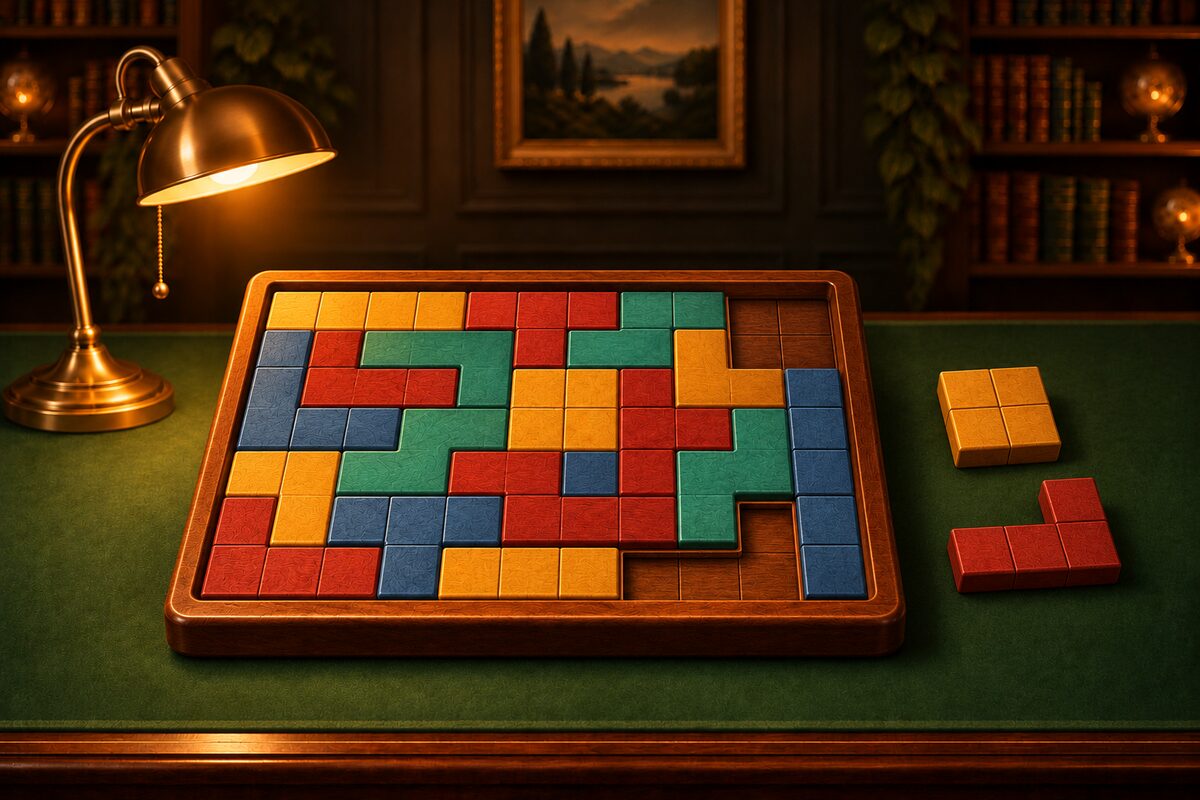
Piece controls in the Wood Block Fit app come down to just two things: tap to rotate and drag to carry. The tags “Tap to rotate” and “Drag to place” also appear at the top of the screen.
Tap to Rotate
When you tap a piece, it rotates 90° to the right (clockwise). After four taps, it is back in its original orientation.
Pieces cannot be flipped over. Puzzles are made by cutting a frame into pieces, so rotating alone is always enough to solve them.
Rotating in the Tray
You can rotate pieces in the tray at any time. Rotating in the tray does not add to your move count and cannot be taken back with “Undo.” We recommend setting the orientation in the tray before you carry a piece to the frame.
Rotating in the Frame
You can also rotate a piece already in the frame by tapping it. The app shifts it slightly and places it again so the rotated shape stays in about the same spot.
If other pieces block the way and the piece cannot rotate, it shakes slightly to tell you it cannot turn.
Drag to Carry
Move a piece from the tray with your finger and let go over the frame, and it snaps neatly into the nearest cells. If the spot overlaps another piece or sticks out of the frame, it does not snap in and goes back.
A piece you lift from the tray becomes the same size as the frame, and it appears a little above your finger so your finger does not hide it.
Moving and Returning Placed Pieces
- You can drag a piece in the frame to a different spot.
- If you let go outside the frame, it returns to the tray.
How Moves Are Counted
Placing, moving, removing, and rotating in the frame each count as one move. Going back with “Undo” does not reduce your move count. When you clear the puzzle, your time and moves are shown.
The other buttons are covered in How to Use Wood Block Fit.