This article covers the screens and buttons of the Wood Block Fit app.
Reading the Screen
- Top bar: Elapsed time is on the left, the difficulty on a gold ribbon (★★★☆☆ and so on) is in the middle, and the number of pieces left is on the right. The timer starts when you place your first piece in the frame.
- Action tags: Under the top bar, you will see the tags “Tap to rotate” and “Drag to place.”
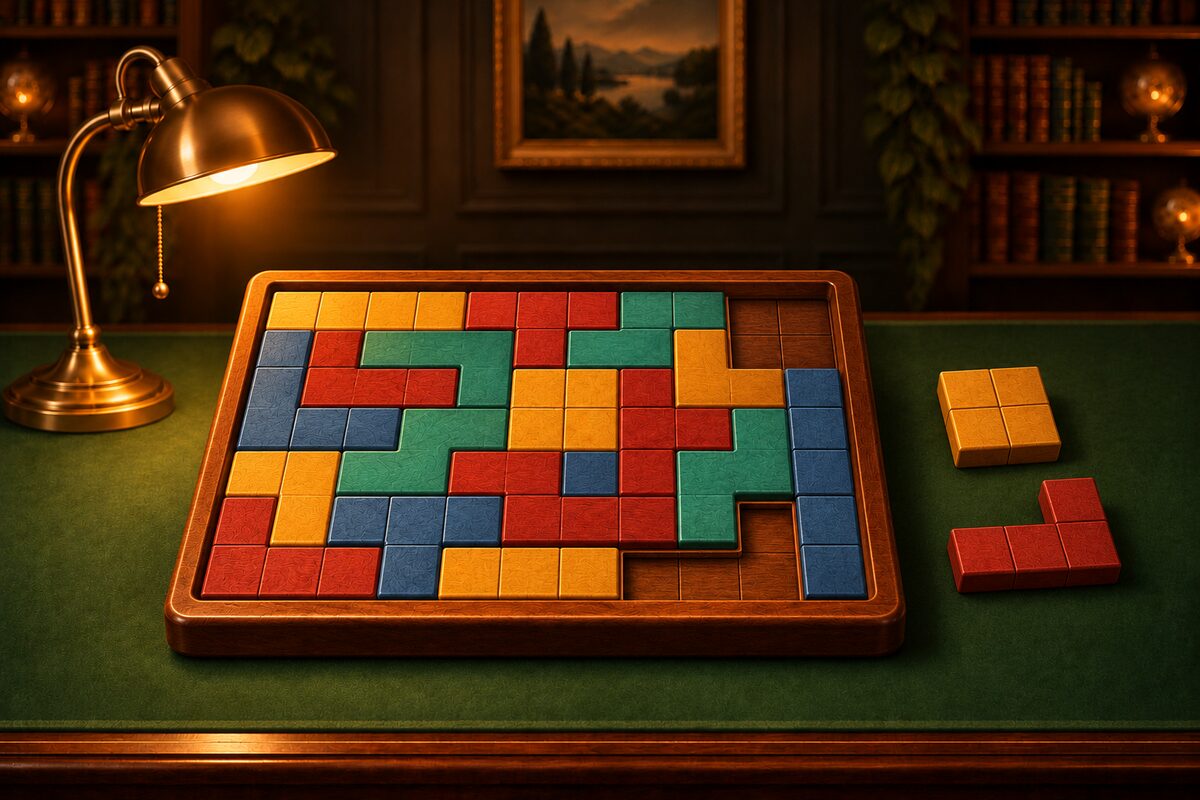
- Frame: The wooden frame in the middle. This is where you fit the pieces.
- Tray: Below the frame (to the right of it, for a tall, narrow frame), the pieces are lined up in scattered orientations.
- Very top: Here you will find your coins, your exploration progress, and the buttons for the Shop and Settings.
Bottom Buttons
- Undo: Takes back your moves in the frame, one at a time.
- Restart: Starts the current puzzle over from the beginning.
- New Game: Starts a different puzzle.
- Hint: Lights up the next piece to place and where it goes (How to Use Hints).
After you clear a puzzle, Undo and Restart can no longer be pressed.
Settings
- Mode: Switch between Rectangles (rectangular frames) and Shapes (frames of many shapes).
- Difficulty: Choose from ★1 to ★5. Each button shows the number of cells in the frame and the coins you earn for clearing it (Difficulty).
- You will also find Sound, Language, and the How to play guide.
If you change the mode or difficulty in the middle of a game, you can choose to switch right away or from the next game.
When You Clear a Puzzle
You clear the puzzle when every piece is fitted in. After a celebration, the results show your time and number of moves, plus the coins you earned. You can also share your results. Tap “Next game” to move on to a new puzzle.
Pick Up Where You Left Off
Even if you close the app, the puzzle you were playing is kept. The next time you open it, you start from the same puzzle (any pieces you had in the frame go back to the tray).
For piece controls, see How to Rotate Pieces and Use the Tray. To learn about collecting, see Collection and Exploration.